Experiment 9: Raspberry Pi OS and remote access
Experiments 1 to 8 ran one program on a microcontroller. The Raspberry Pi is a full Linux computer, so the work changes from writing firmware to administering a machine you never plug a monitor into: install it, get it on the network, and log in to it remotely.
Objective
- Problem
- Install an operating system on a Raspberry Pi and make it usable remotely, with no monitor, keyboard or mouse attached (“headless”).
- Inputs
- a laptop, a USB pendrive (16 GB or more), the Pi, a 5 V USB-C supply and a Wi-Fi network.
- Result
- the Pi boots by itself, joins Wi-Fi, and can be reached two ways: a terminal over SSH and the desktop through Raspberry Pi Connect (or VNC).
- Learn
- what a Linux single-board computer adds over a microcontroller, how first-boot configuration works, name discovery with mDNS, and how SSH secures a remote login.
System
Design decisions
A Raspberry Pi (Linux computer) instead of a microcontroller
- Why
- It runs a full OS: processes, a filesystem, Python, a network stack, package manager, a desktop. Good for gateways, cameras, databases and anything that needs more than one program.
- Alternative
- ESP32 or Arduino: no OS, boots in milliseconds, uses milliwatts, exact timing.
- Switch when
- Use a microcontroller for hard real-time control, battery power or very low cost; use the Pi when you need Linux software or heavy processing.
Boot from a USB pendrive, not a microSD card
- Why
- USB 3.0 storage is usually faster than microSD and wears out less under constant writes. Newer Pi boards can boot directly from USB.
- Alternative
- microSD card (the default) or an SSD over USB.
- Switch when
- microSD for the simplest setup; SSD for a Pi that runs all day and writes logs or databases.
Headless setup through Imager’s OS customisation
- Why
- Hostname, user, Wi-Fi and SSH are written into the image, so the Pi is on the network after its first boot without ever seeing a keyboard.
- Alternative
- Attach a monitor and keyboard and run the setup wizard.
- Switch when
- Use a monitor only when the network setup fails and you need to see the console.
A new username and strong password, not pi/raspberry
- Why
- Default credentials are the first thing an attacker tries on any network device; current Raspberry Pi OS no longer ships a default user for this reason.
- Alternative
- SSH key login (no password at all).
- Switch when
- Move to keys and disable password login as soon as the Pi is reachable by anyone else.
SSH for the terminal, Connect/VNC for the desktop
- Why
- SSH is a light, encrypted text session: enough for installing packages and running scripts. A remote desktop sends the screen, so it uses much more RAM, CPU and bandwidth.
- Alternative
- Only VNC, or only SSH.
- Switch when
- Desktop only for GUI programs; everything else over SSH.
Find the Pi by name (raspberrypi.local), not a fixed IP
- Why
- mDNS answers on the local network without any router configuration, so it works on a phone hotspot too.
- Alternative
- Look up the IP in the router’s DHCP table, or set a static IP / DHCP reservation.
- Switch when
- Use a reservation when other devices must always find the Pi at the same address, or on networks that block multicast.
What we did
Installed Raspberry Pi Imager on the laptop and inserted a USB pendrive.
Imager downloads the OS image, writes it block by block and verifies it; a plain file copy would not make a bootable disk.
Chose the board model, Raspberry Pi OS (64-bit), and the pendrive as storage.
The board selection filters images that will boot on it; picking the right drive matters because writing erases it.
In Edit Settings (Ctrl + Shift + X): hostname, new username and password, Wi-Fi SSID, password and country; on the Services tab, enabled SSH with password authentication.
These go into first-boot configuration on the boot partition. The Wi-Fi country sets the legal radio channels; without it Wi-Fi can stay disabled.
Clicked Write, confirmed the erase, waited for write and verify.
Verify reads the drive back and compares it, so a bad pendrive is caught now and not as a mysterious boot failure.
Plugged the pendrive into a blue USB 3.0 port, left the microSD slot empty, connected the 5 V USB-C supply and waited 1 to 2 minutes.
With no SD card the bootloader falls through to USB. The first boot is slow because it applies the settings, grows the filesystem to fill the drive and reboots.
With the laptop on the same Wi-Fi, ran
ping raspberrypi.local(or checked the router/hotspot client list).Confirms the Pi joined the network and gives its IP address.
ssh <username>@<ip>, typed yes to the fingerprint, entered the password.Opens an encrypted shell. “yes” records the Pi’s host key so later connections can detect an impostor.
sudo apt update && sudo apt upgrade -yRefreshes the package list, then installs updates; a fresh image is often weeks behind on security fixes.
sudo raspi-config→ enabled VNC.raspi-config is the text-mode settings tool; VNC is off by default.
sudo apt install rpi-connect -y,rpi-connect signin, opened the link, signed in with a Raspberry Pi ID, opened the desktop from the Connect dashboard.Links this Pi to your account so the browser can reach it from any network.
What happens underneath
| Piece | How it works | Why it matters here |
|---|---|---|
| Boot order | The Pi’s bootloader (in on-board EEPROM) tries the boot devices in its configured order; with no SD card it boots from USB, loads the kernel, then Linux starts its services. | Why the SD slot was left empty. |
| First boot | A one-time script applies the Imager settings: creates the user, writes the Wi-Fi config, enables the SSH service, expands the filesystem, then reboots. | Why the first boot takes longer and the Pi appears only after a minute or two. |
| mDNS | The Pi runs a responder (Avahi). A query for raspberrypi.local is multicast to the whole LAN (224.0.0.251, port 5353), and the Pi answers with its IP. | No DNS server or router setup needed. Fails across routers or where multicast is blocked. |
| SSH | TCP port 22. Key exchange builds an encrypted channel, the server proves its identity with its host key, then the user logs in (password or key). | Everything, including the password, is encrypted. The fingerprint check is “trust on first use”. |
| VNC | Remote Framebuffer protocol (port 5900): the server sends screen updates, the client sends keyboard and mouse events. | Needs a direct network path to the Pi, like SSH. |
| Raspberry Pi Connect | The Pi and your browser both connect out to Raspberry Pi’s service, which sets up a WebRTC session between them (peer to peer where possible, relayed otherwise). | Works across networks, behind NAT, with no port forwarding: the same “device dials out” idea as Exp 8. |
Reading the commands
Remote access commands
ping raspberrypi.localssh <username>@<raspberry_pi_ip>sudo apt update && sudo apt upgrade -ysudo raspi-configsudo apt install rpi-connect -yrpi-connect signin- Line 1Resolves the hostname via mDNS and checks the Pi answers. The reply line shows its IP address.
- Line 2Log in as the user created in Imager.
<...>are placeholders: fill in your own values.ssh user@raspberrypi.localalso works. - Line 3
sudoruns as root.updatedownloads the package index;upgrade -yinstalls newer versions without asking.&&runs the second only if the first succeeded. - Line 4Menu-driven configuration: Interface Options → VNC to enable the VNC server.
- Line 5Installs the Raspberry Pi Connect service.
- Line 6Prints a sign-in link; opening it and logging in ties this Pi to your Raspberry Pi ID.
Reading the output
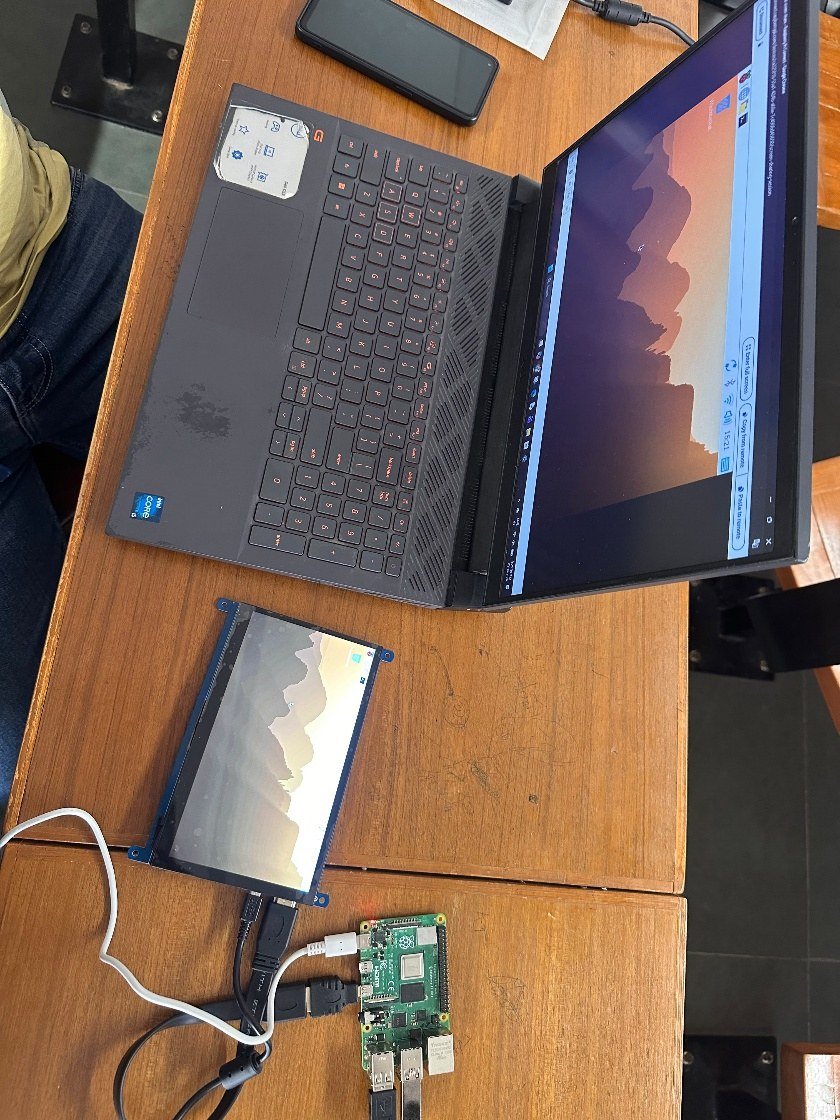
- Bottom: the Raspberry Pi board, powered by its USB-C cable, with an HDMI cable to the small 7-inch display.
- The small display shows the Raspberry Pi OS desktop (mountain wallpaper): the OS installed and booted from the pendrive.
- Top: the laptop browser shows the same desktop. That is the remote session: the laptop is controlling the Pi over the network, not over a cable.
- Together: installation worked, the Pi joined Wi-Fi, and remote desktop access was set up.
Limits and redesign
- Password SSH: open to guessing. Use SSH keys (
ssh-keygen,ssh-copy-id) and setPasswordAuthentication no; never expose port 22 to the internet directly. - Power: an underpowered supply causes undervoltage warnings, USB drives dropping out and random crashes. Use the official supply for your board.
- Storage wear and sudden power loss can corrupt the filesystem. Shut down with
sudo poweroff; for unattended devices use an SSD or a read-only root filesystem. - Updates: a Pi left online must keep getting security updates (scheduled
apt upgradeor unattended-upgrades). - Scale: setting up one Pi by hand is fine; for ten, bake the configuration into a custom image or use a provisioning script.
Say this in the viva
Viva questions
Why
Why use a Raspberry Pi instead of an ESP32 here?
It runs Linux: several programs, Python, a filesystem, a desktop and remote login. An ESP32 runs one firmware with no OS. The Pi is a gateway or edge computer; the ESP32 is a sensor or actuator node.
Why is it called headless?
No display, keyboard or mouse: it is set up and used only over the network.
Why did you have to type “yes” the first time you connected?
SSH showed the Pi’s host key fingerprint, which it had never seen. Saying yes stores it in known_hosts; if it ever changes, SSH warns of a possible man-in-the-middle.
Why set the Wi-Fi country?
It decides which channels and transmit power are legal; Raspberry Pi OS keeps Wi-Fi blocked until a country is set.
What if
What if ping raspberrypi.local fails?
The laptop may be on another network, or the network blocks multicast, or the Pi has not finished its first boot. Find the IP in the router/hotspot client list and SSH to the IP.
What if you forget the password?
Re-flash, or mount the drive on another computer and reset it. That is also why physical access is a security risk.
What if a microSD card with an OS is also inserted?
The bootloader would normally boot from the SD card first, so you would get that OS instead.
Design
How would you let the Pi be managed from outside the college network?
Not by forwarding port 22. Use a service where the Pi dials out (Raspberry Pi Connect) or a VPN (WireGuard, Tailscale), with key-based login.
How would you set up 20 Pis for a lab?
One customised image with keys and settings baked in (or a first-boot provisioning script), unique hostnames, and DHCP reservations.